
How many users can I add to my Business Digital Banking account?
There is no set limit on the number of authorized users you can add. Each user receives their own login credentials and a unique permission set that you control.
Give your team the access they need — nothing more.
September 8–9 — Online and mobile banking move to view-only for a short window as we finish our Digital Banking upgrade. Learn More
Business User Management in Elements Business Banking lets you add employees as authorized users and assign granular permissions to each one. Limit access to specific features, update permissions as roles change, and deactivate users instantly if needed — all without calling the branch.
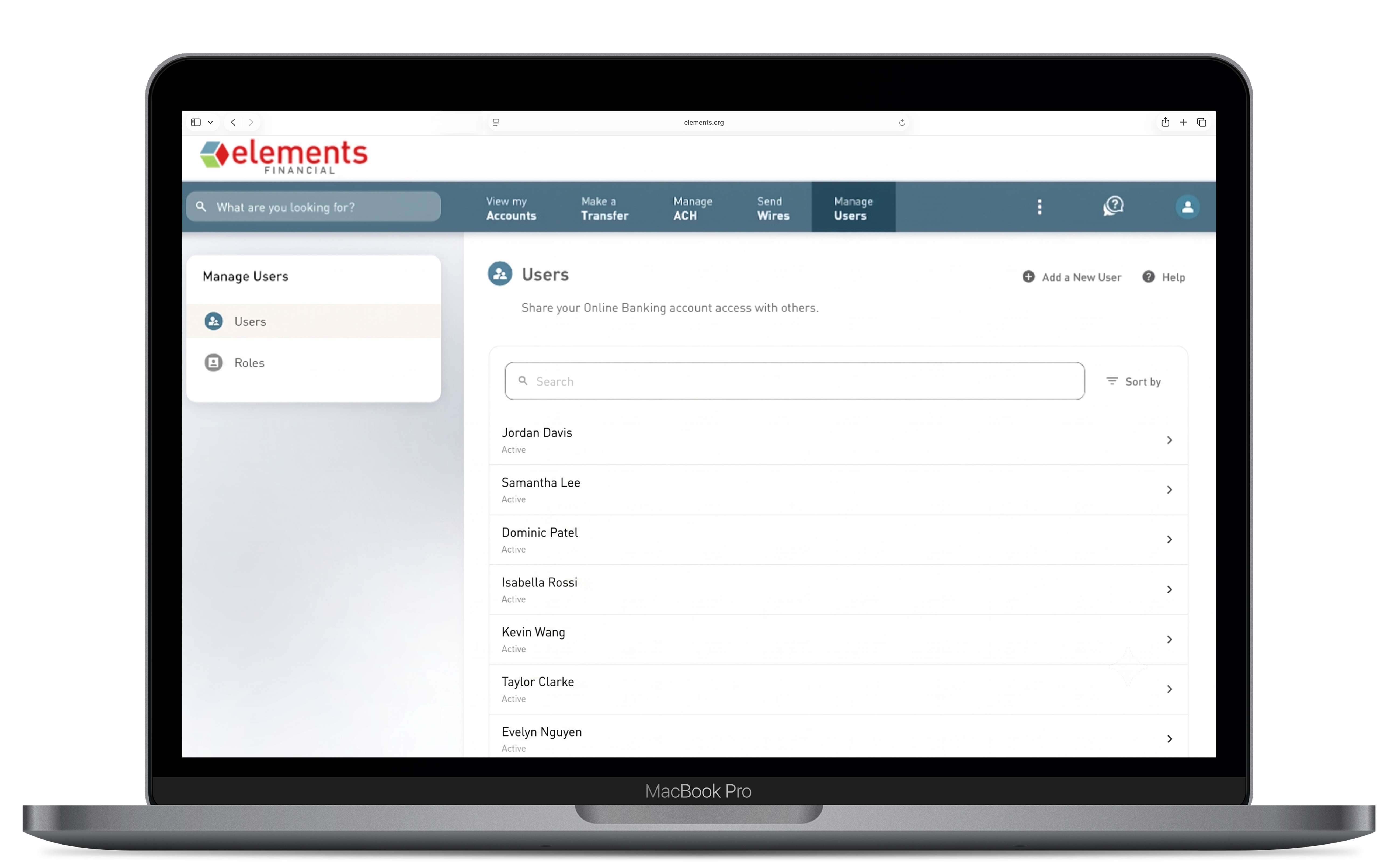
(1 of 4)
Enter the employee's name and contact information to create their Business Digital Banking profile. They'll receive login credentials and start with view-only access until you assign permissions.
(2 of 4)
Choose from a full list of permission categories — from account viewing to Bill Pay origination to card controls. Assign only what each employee needs for their role.
Available permissions: Account Access, Stop Payments, ACH Stop Payments, Bill Pay, External Accounts, Member-to-Member Accounts, Request New Card, Advanced Card Controls, Debit Card PIN, Activate Card, Balance Transfer.
(3 of 4)
As roles change, adjust permissions in real time. If an employee leaves, deactivate or delete their account immediately from the Manage Users panel.
(4 of 4)
Need to restrict access while you review an issue? Lock a user without deleting their profile. Unlock them just as quickly when you're ready.
There is no set limit on the number of authorized users you can add. Each user receives their own login credentials and a unique permission set that you control.
A view-only user can log in and see account balances and transaction history, but cannot initiate transactions, make payments, or change account settings. They cannot take any action that moves money or modifies account data until you grant the appropriate permission.
No. When you log into your account on the upgraded Business Digital Banking in September, all existing sub-user permission settings will be reset.
All sub-users will start with View-only access until you, the account administrator, log in and assign new permissions. After your first login, go to Settings > Manage Users to reassign permissions to each team member.
Please plan to review and reassign user permissions after your first login to the new platform.
Yes. Permissions are assigned individually. You can enable Bill Pay for one user while keeping them restricted from ACH origination, wire transfers, or card controls. Mix and match permissions to match each employee's actual job responsibilities.
You can deactivate or delete their user profile immediately from the Manage Users screen. Deactivation prevents login but preserves the profile for your records; deletion removes the profile entirely.

