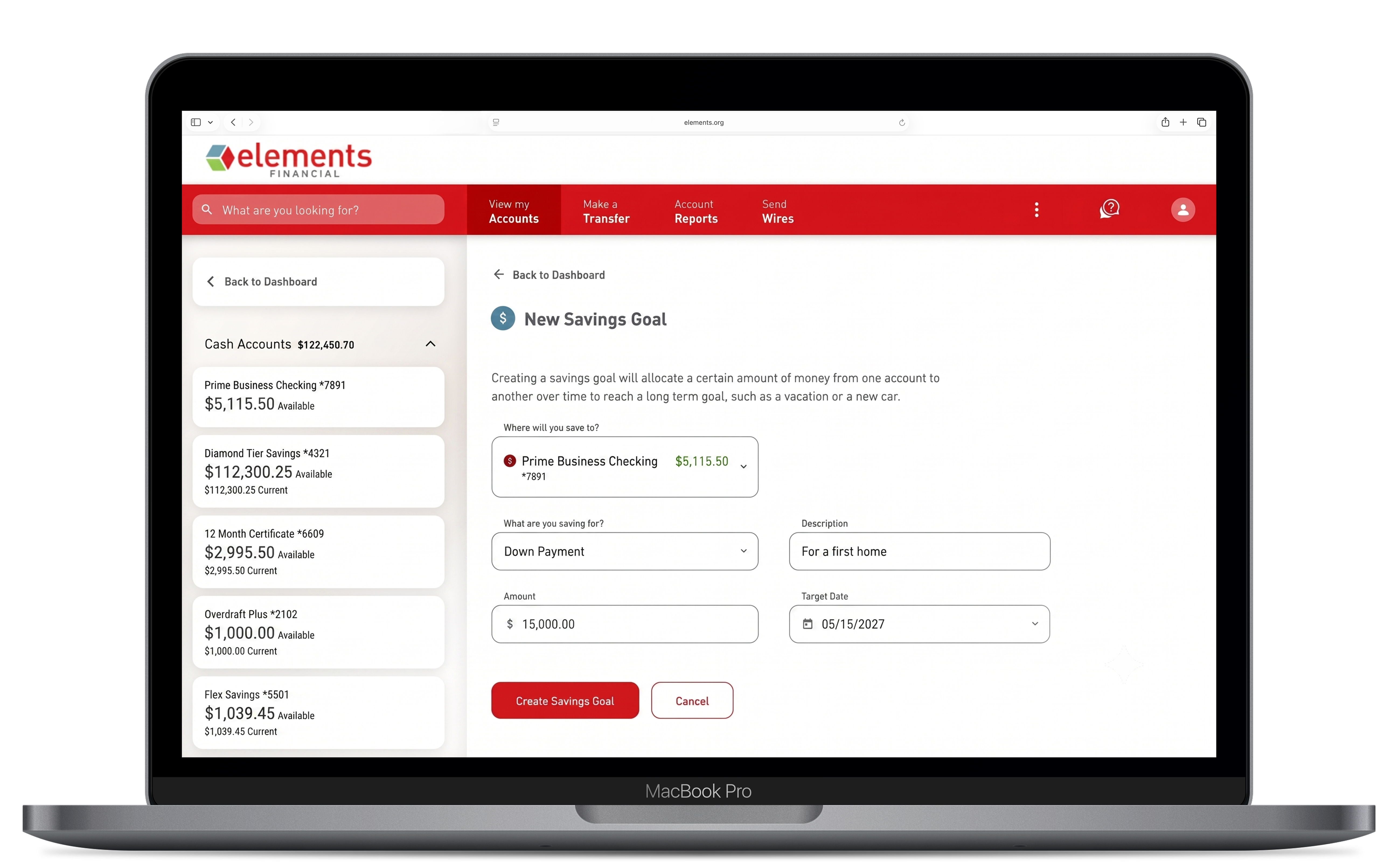
There is nothing more important to us than your security! We work tirelessly to protect our members. Rest assured, we use the latest in advanced technology to protect your personal information. Read on for more details.
Multi-Factor Authentication
Multi-Factor Authentication (MFA) is a security feature in which more than one form of authentication is implemented to verify the legitimacy of a transaction. The goal of MFA is to create a layered defense and make it more difficult for an unauthorized person to access a member’s account information in Online Banking.
Secure Access Codes
The MFA feature requires our online banking users to supply a Secure Access Code (SAC)/Temporary Access Code (TAC) before logging in. This code is delivered via email, text or phone message using contact information attached to your account profile. The MFA process permits online banking users to register browsers or devices. On a registered browser or device, the system will no longer prompt you to enter a new SAC/TAC each time you log in. If you choose not to register your browser, you will be required to request and enter a new SAC/TAC each time you log in to online banking. Each time you log in to online banking after you have registered for MFA, it evaluates whether you are using the same computer and browser you registered with us. Online banking looks for our cookies (electronic markers) in your computer’s memory; if it doesn’t find them, we ask you to identify yourself again by providing a code that you receive by email or text. After your computer is registered, you shouldn’t need to provide a code again for that computer using that browser. (Note: Each time you use a public computer, you must provide a code as a security measure.) On rare occasions, some members can't log in to online banking without registering their computer each time – even after they have registered it already. This may mean that their computer’s browser is clearing our cookies, and our website cannot recognize the computer. If you are experiencing this, try changing the settings in your browser.
Touch ID and Facial Recognition
Touch ID uses your fingerprint as a way to log in, while Facial Recognition identifies you with a camera. These options mean you and only you can log in through this method. Touch ID or Facial Recognition can be enabled on the login screen at any time, as long as you already have login credentials. Alternatively, you enable these features under “Profile” in the main menu of the app.
Secure Messaging
You can submit secure emails to Elements within Digital Banking. Because the email is delivered behind the secure login area, you know it will go directly to the intended party.
Transaction Alerts
You can set up a variety of automated account and security alerts in Digital Banking to keep you informed of activity on your accounts. Examples of alerts you can set are:
- When your balance hits or drops below a certain level
- When an external transfer is authorized
- When a computer or browser is successfully registered
- When your password or login ID is changed
- And many others