
As part of our upcoming Digital Banking upgrade launching this fall, we want to give you a heads-up about a change to how you deposit checks remotely.
What's Changing
Right now, you can deposit checks two ways: through a desktop scanner or through the Elements mobile app. After September 2, desktop remote deposit capture will be discontinued — check deposits will only be available through the mobile app.
What This Means for You
If you currently deposit checks from a computer using a scanner, you'll want to switch over to mobile deposit before the upgrade so there's no gap in how you manage your deposits.
How to Switch to Mobile Deposit
- Make sure you have the latest version of the Elements mobile app installed. You can download the Android or iOS app from our Digital Banking hub.
- Log in using your existing username and password (a quick one-time verification will be required the first time you log in after the upgrade)
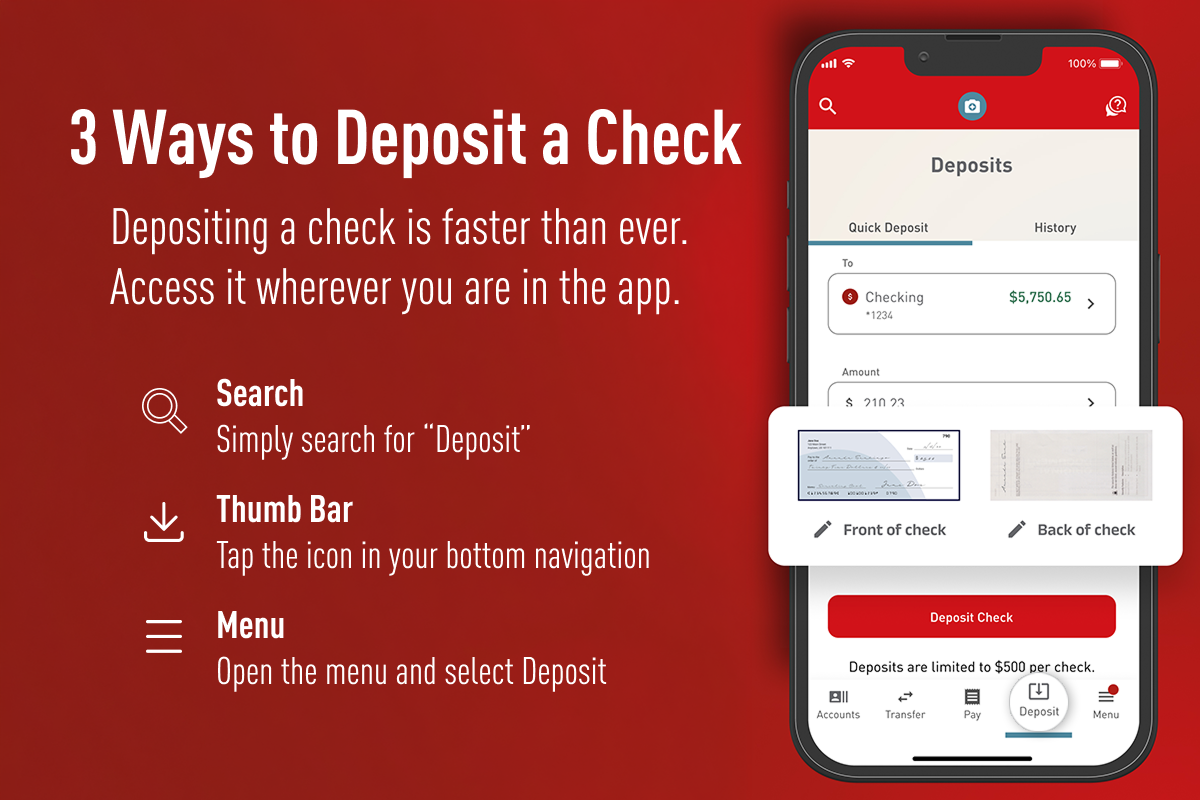
- From the app, select Deposit, then follow the prompts to snap photos of the front and back of your check
A Couple of Things to Keep in Mind
- Deposits made and approved by 11am ET typically post the same day; deposits after 11am ET may post the next business day, subject to our funds availability policy
- Right after the upgrade, remote deposits may see a short delay while we review high-risk deposit items — this is temporary as we complete the transition
We’re Here to Help
If you have questions about setting up mobile deposit or want a hand getting started, our team is ready to help:
- Live Chat at elements.org
- Email: customerservice@elements.org
- 24-Hour Contact Center: 317-276-2105 or 800-621-2105
Stay up to date with all the upgrades coming to Digital Banking in September.